This
Page is here to help you get set-up with N1MM+ Contest Logger
for Field Day!
This page assumes you have already installed the logger, using the
instructions from the other E-Mail.
If you haven't installed it yet, Of course do it now.
If at any time you have a problem or a question PLEASE E-Mail me!
nss@mwt.net
OK, N1MM+ is installed.. Now to set it up for Field Day.
First Of course, Start up the logger. It will probably ask if you want
to install the UP-Date.
ALWAYS tell it Yes! Whenever you are using the logger if it asks ALWAYS
say YES!
Ok, we want to make a new separate database for the Field Day effort.
This allows you to make changes to the program
and not have it affect the logger if you make a database for your own
personal use.
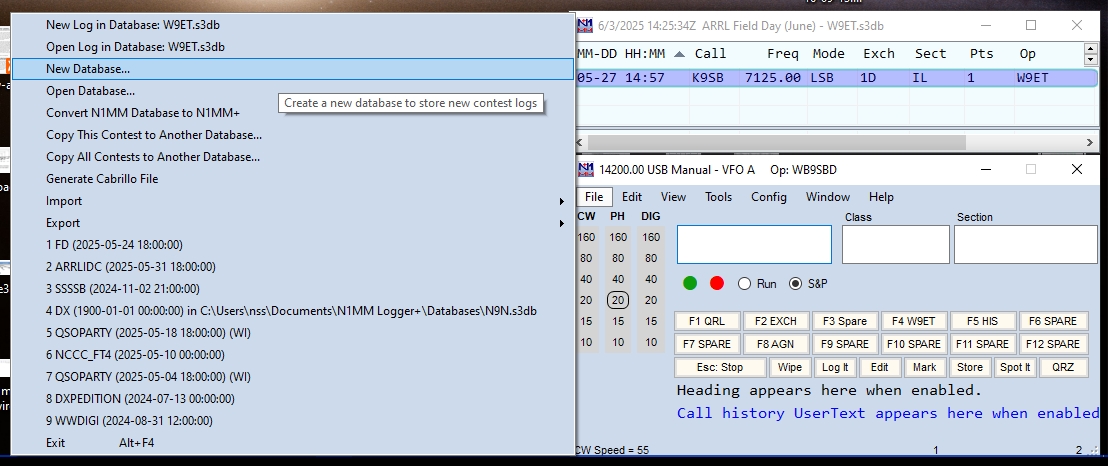
In the Main logger window click on File, and from the window that
appears choose, New Database.
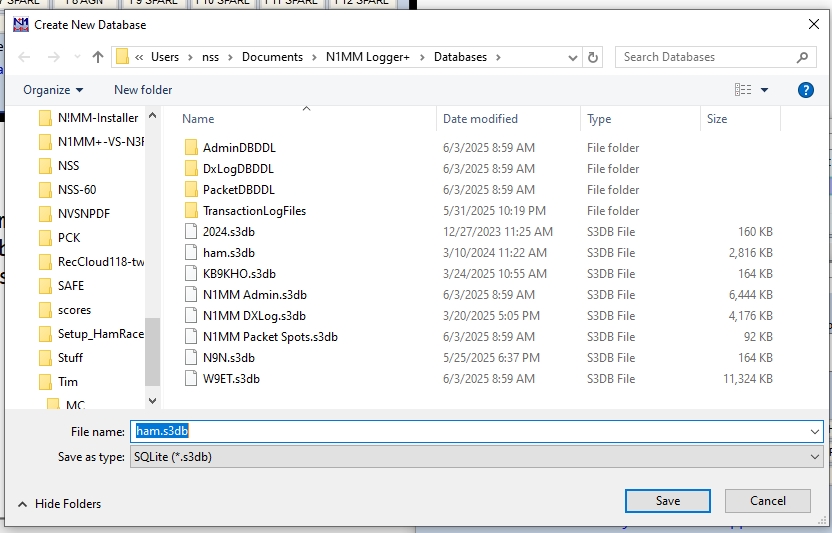
A Window that looks like this will appear.
As you can see I already have them in Mine. The Stations that will be
using N9N, make one for N9N, Duh?
The GOTA Station, of course make one for W9ET. And of course
"Save" it.
They should say N9N.s3db or W9ET.s3db
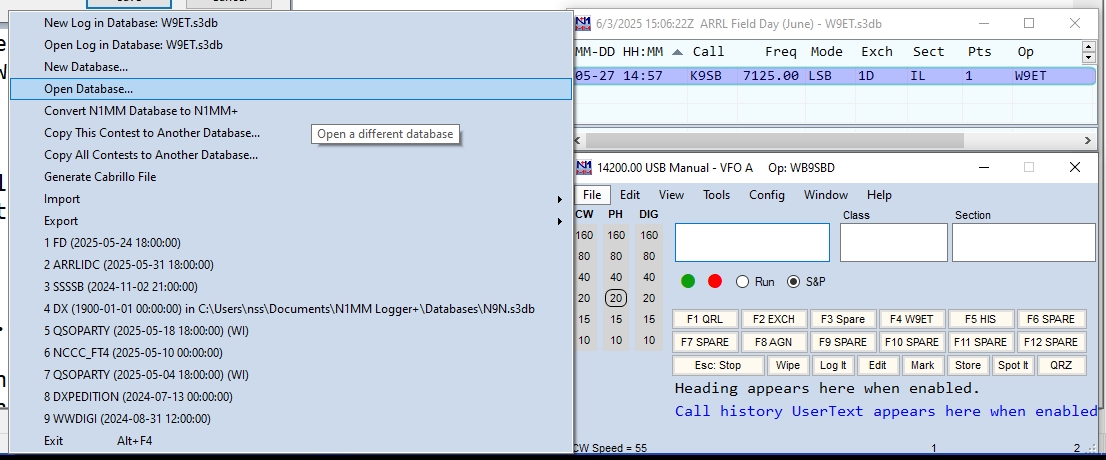
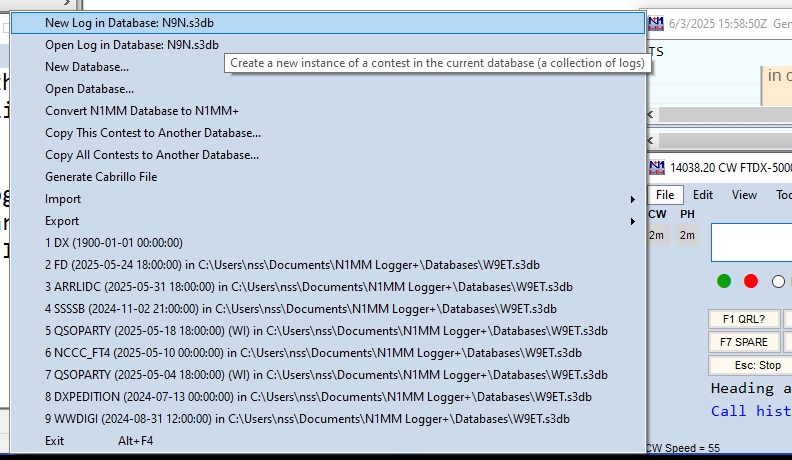
Now in the main window choose File, And choose Open Database,
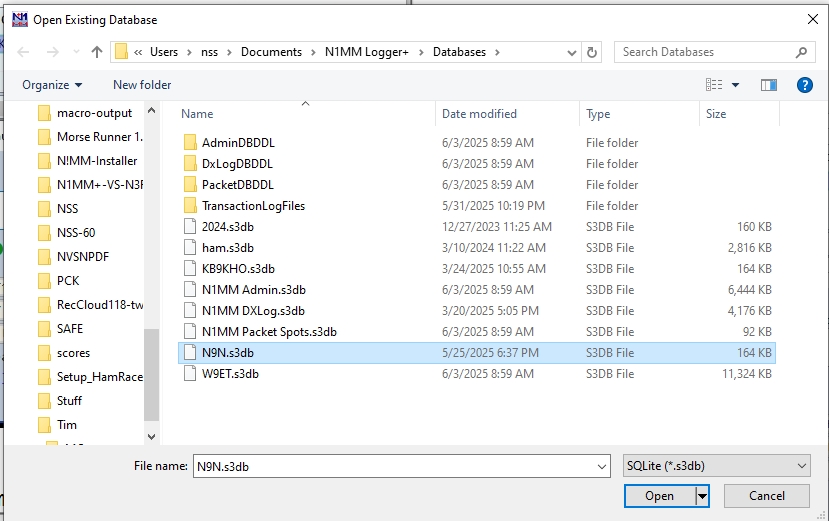
And a window like this appears.
Choose the appropriate one. In this example I'm choosing the N9N one.
Click OPEN. (GOTA Choose the W9ET one.)
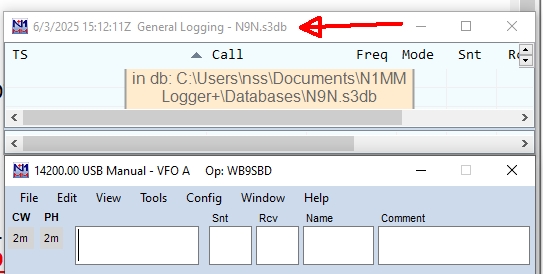
To verify you are using the desired Database. look at the top of the
"Log" window.
You will see at the top of the log window what Database is being used
as seen here.
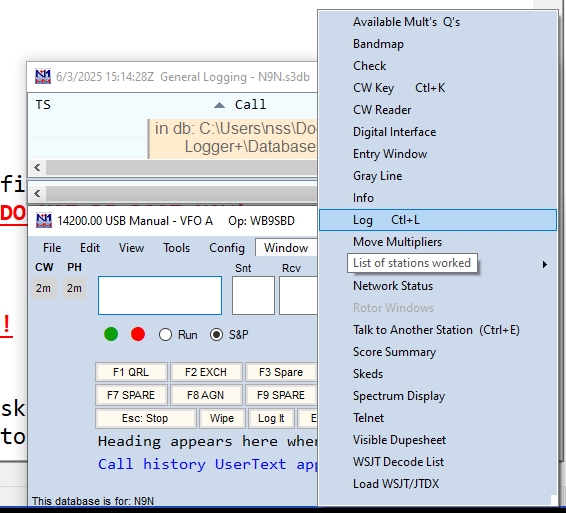
If the "Log" window isn't already open and visible, In the main window
choose
Window>Log or try Ctrl+L as seen here.
N1MM+ is very different from almost any other loggers. Each function
has it's own window.
You can only have what windows you want to see actually be visible. No
extra clutter of stuff taking up space.
In addition you can re-size them to any size you like, and place them
anywhere on your screen also.
As you can tell I like my main log window in the lower right of my
screen, and the "log" right above it.
That you can re-size to any size you want.
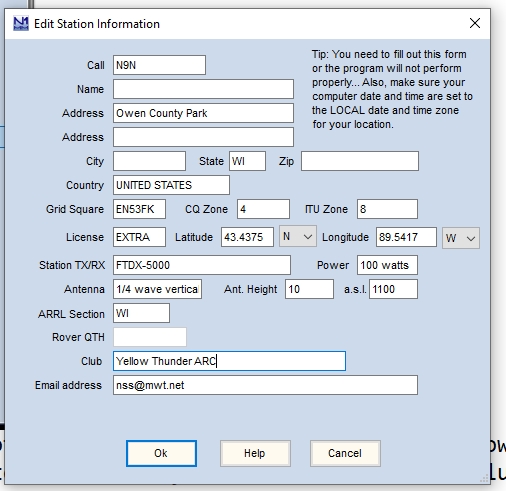
Now we want to modify the Station Data to fit Field Day.
In the main window click on Config>Change your Station Data,
and a window that looks like this will appear.
The N9N folk fill it out as seen, Fill in the grid square and it will
auto fill the lat/long for you.
put in your radio, ant, power, etc. and your E-Mail address.
The GOTA station change the call to W9ET and in Name may as well put
GOTA,
Do the rest as seen here. And of course click "OK" when finished.
Now go back to the basic radio control interfacing link, and follow
closely the instructions. it seems daunting but if you do it one step
at a time. it's not that bad. When they have you close that big setup
window, and you have your radio "ON"
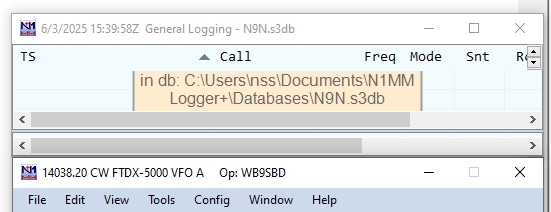
You should see in the Main window details about your current situation.
Like in mine here.
In the Log window it is telling me the Date, The Time, What "Contest"
it is in, and what database is being used.
In the Main logger window it is telling me what frequency the radio is
at. what mode it's in, what radio it is, what VFO it is using, And who
the operator is.
Speaking of Operator, may as well log yourself in Now. do Ctrl+O and
enter in your call.
The logger now should indicate you are the Operator! If at anytime a
command doesn't work it is probably because the "Focus" was not on the
Main Window. In other words click anywhere in the Main logger window
and then do the Crtl+O.
OK, Now Lets set up for Field Day.
In the Main window Choose File>New Log In Database, as seen here.
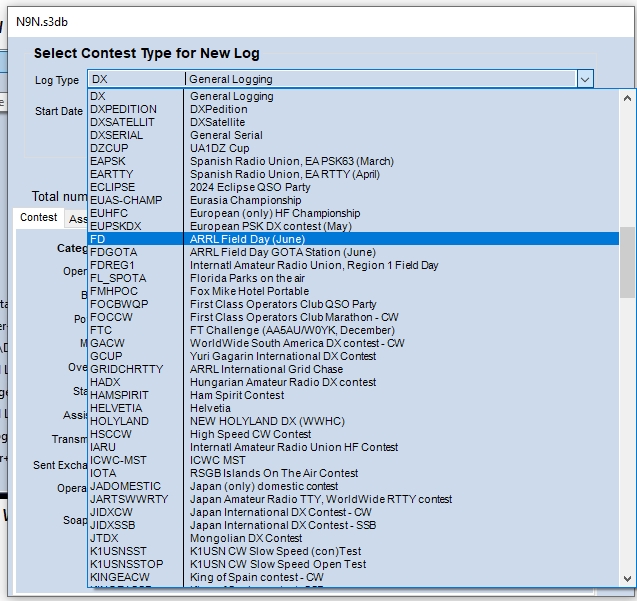
And a window that looks like this will appear.
Choose FD ARRL Field Day (June)
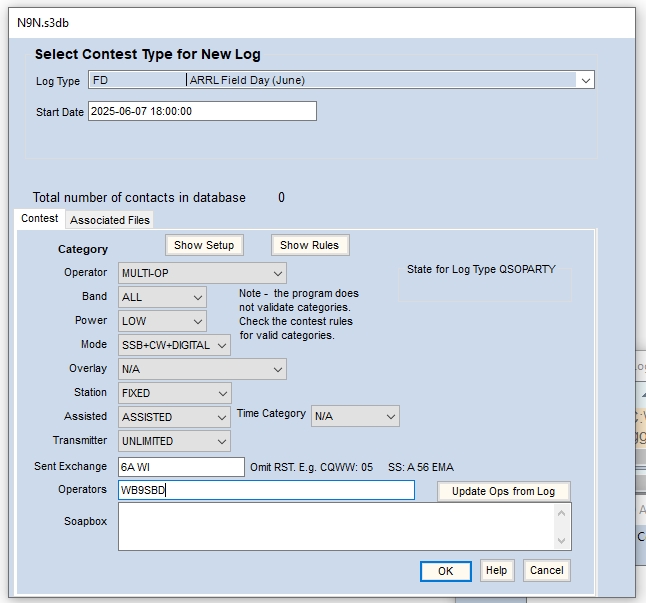
and a window that looks like this should appear.
Make all the pull downs match as seen above, (except for the Operators)
but do not click Ok yet.
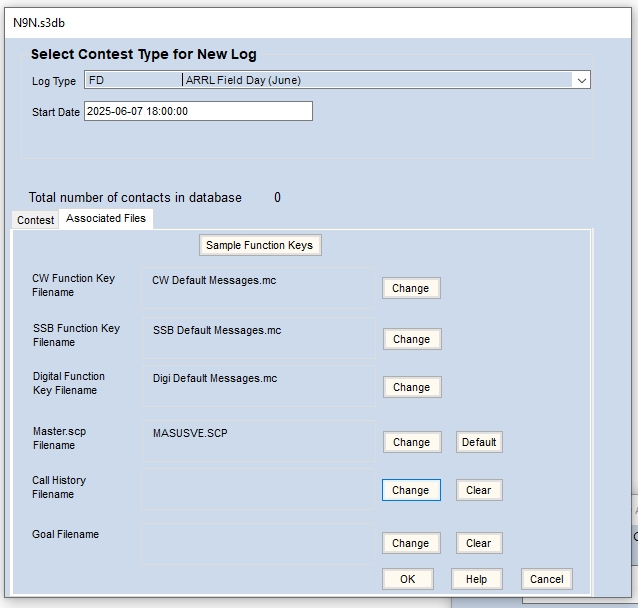
Click on the Associated Files tab and this window will appear.
It is not there yet, but the Call History Filename, before Field Day
will have a file listed there.
you click on the Change button to the right, and it will download that
file and install it for you.
Now click "OK"
And your basic setup should be ready to use. Play with it.
make some fake contacts etc.
IMPORTANT!
The Wednesday, Thursday, before Field day you MUST make a new log for
Field Day.
Reason is, for Field Day to work with the Networking everyone MUST be
using the exact same version and support files.
And since N1MM+ is UP-Dated every Tuesday, a week old version won't be
happy with the others.
So Wednesday and Thursday make up a new Field Day log as described
above and also do these two steps.
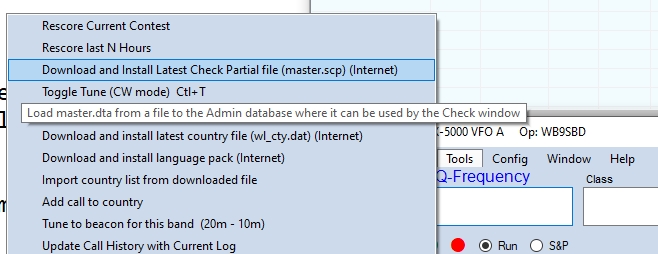
In the main window click on, tools, and this will appear. Click on the
highlighted one and install it.
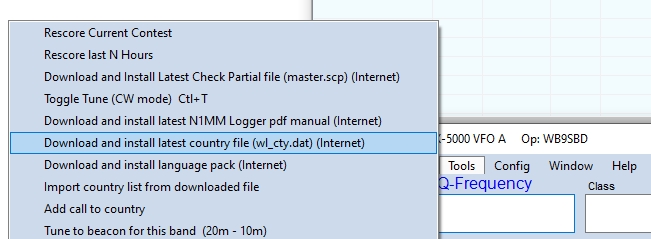
Now click on Tools again but this time choose this Highlighted one.
Now the logger is all
set for basic Logging.
Go ahead and play with it. make some fake contacts etc.
I'll let ya know where more fancy features are added as in that video.
Joe WB9SBD
+++++++++++++++++++++++
Now lets start to add aids, Not the disease, Every time I hear that
statement it makes me think that!
Anyway lets start to add features that make your logging efforts and
operating much easier.
Now of course any of these I suggest you add, you do not have to.
That's all up to you.
But after using them, I honestly can not see doing a contest and not
use their help!
First is Call History.
Save the attached txt file from that E-Mail I just sent you somewhere
safe.
Now Make a copy of it. and go to....
Documents>N1MM logger+> And paste that file
into the CallHistoryFiles Folder.
That file is from last year.,,,, well actually the data inside it is
from the 2023 Field Day.
See N1MM+ Developers are able to get data (not sure how) of all the
contacts that were made
during Field Day. And what was sent for each stations
exchange. The file where your saved it
NOT the saved on in the call history folder, but the other saved copy,
open it in any txt program, Notepad I use.
You will see OVER 14 thousand calls in there! They look like this.
AA0AC,1D,MN,Spirit Valley Amateurs
AA0AJ,1D,MN,
AA0AW,1D,MN,
AA0B,1D,MO,Central Missouri RA
AA0BQ,1E,MN,Mining ARC / St. Paul RC
AA0BV,1D,SF,REDXA/MARS
AA0CL,1B,MO,Boeing Employees ARS - St. Louis
AA0CN,1E,MN,Rochester (MN) ARC
AA0CW,1B,CO,Montrose ARC
AA0FO,1D,KS,Kansas City Contest Club
If you scroll and find Yellow Thunders effort WB9FDZ it shows,
WB9FDZ,2A,WI,Yellow Thunder ARC
It shows the Call, the class, and what section, and even who
WB9FDZ is.
Now go start up N1MM+. It always starts up exactly how it was set up
when you shut it down.
So it should be in the Field Day contest.
Now we added that Call History file behind the programs back. Usually
it is added when you are making the contest.
Remember above when you went to that Associated files tab? It usually
gets it that way, and thus knows it was installed and automatically
activates it.
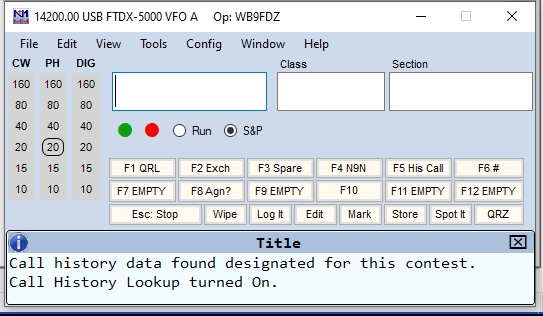
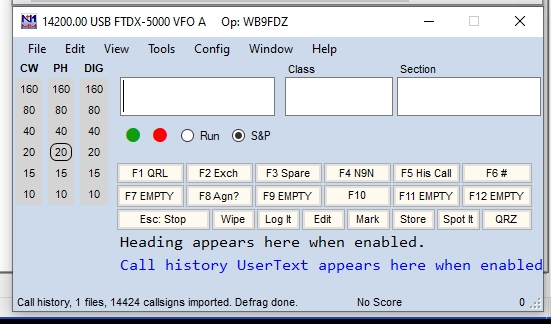
If it is ready and running in the lower left of the main window it will
tell you like this.
And will change to this also,
See in the lower left it says it is ready to use.
Now to make sure it is "Activated" it CAN be installed, but not
activated.
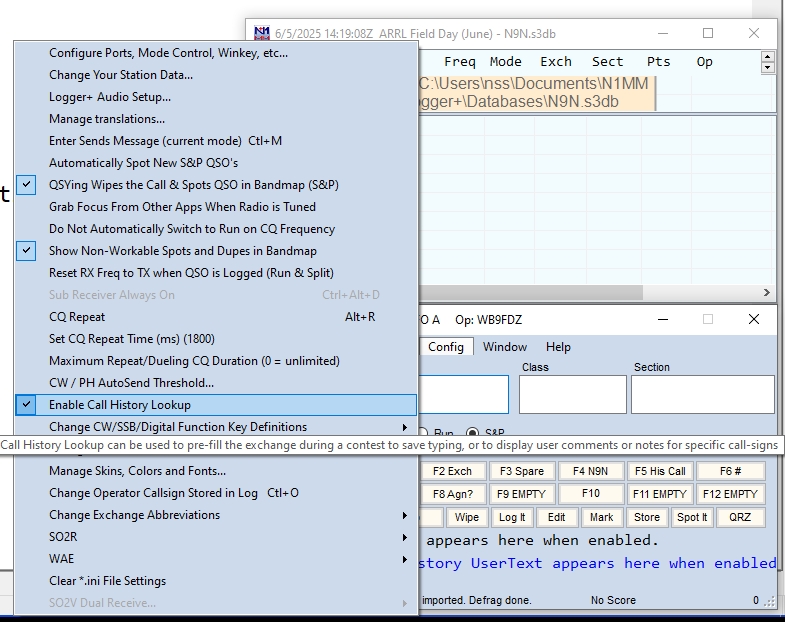
Click on Config and choose, Enable Call History lookup, It should be
checked as seen here.
Now you are ready to use it!
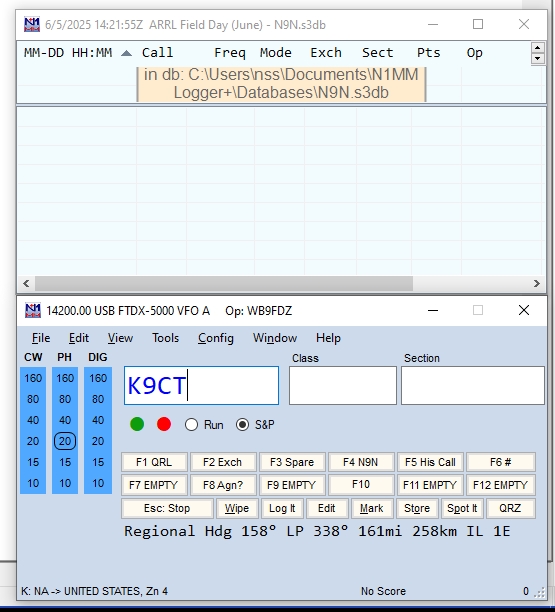
Be in S&P Mode, have the S&P circle thing highlighted.
Now say you are looking for someone to work, and you find calling CQ
K9CT.
In the Logger type in say, K9CT
And of course it shows this,
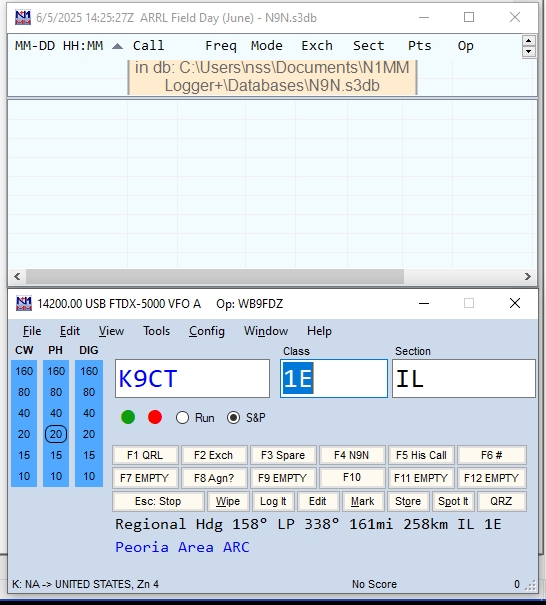
All is good. Now hit your spacebar, and looky there!
It fills in FOR YOU what that station sent for their exchange from that
file!
Notice the "Class" is highlighted? The program is smart. It knows if
anything should possibly be different
in the exchange from the other year, it would be the class! So it's
already highlighted.
Say they sent instead 1A,, you don't have to even delete that 1E, just
type in the 1A and it automatically deletes the 1E and puts in the 1A.
sooo cool!
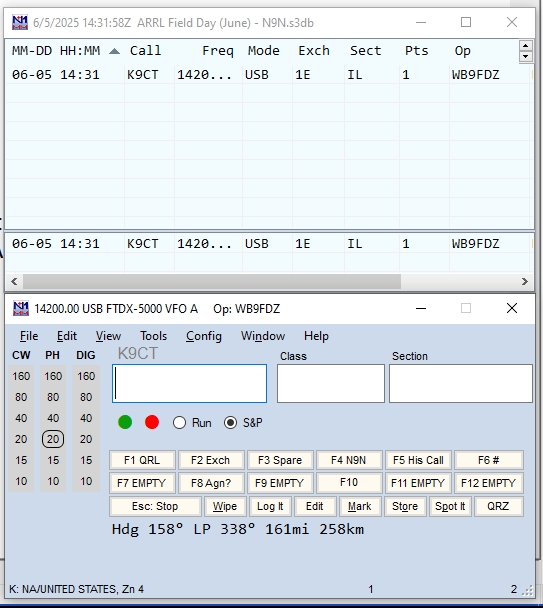
When you are happy with what was copied and entered into the logger hit
ENTER and it's Logged!
Now with that K9CT call if it did not fill it in for you, The program
doesn't know it's there.
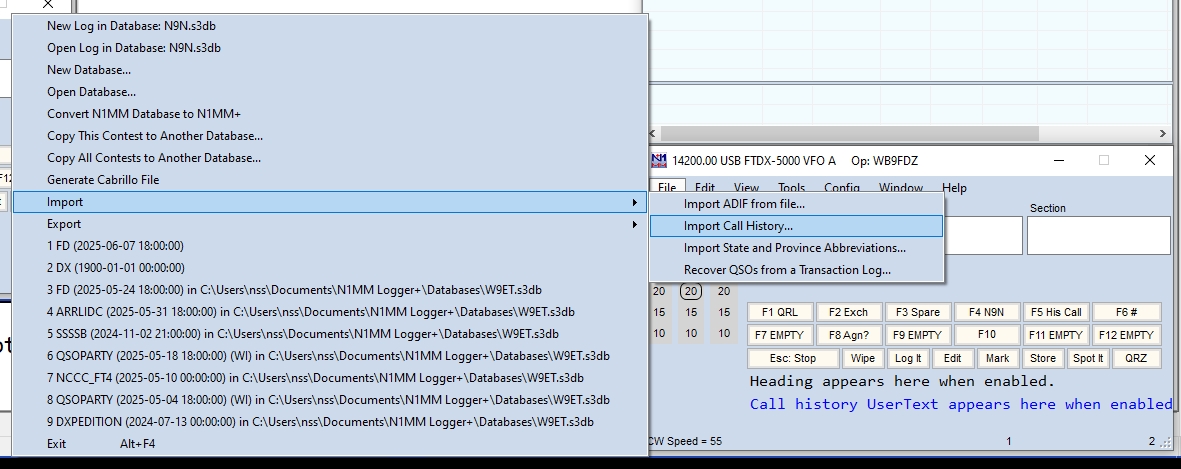
Go to File and click on Import> Call history.
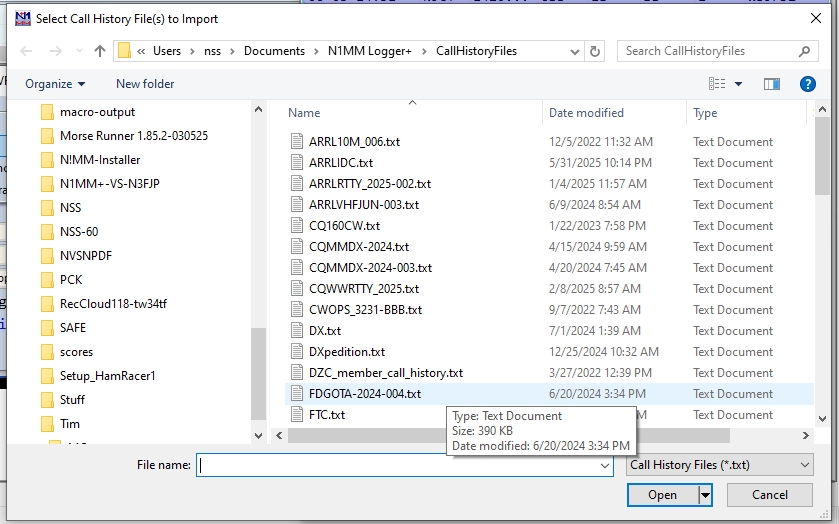
and a window will appear like this,
Choose the FDGOTA file. And things should all be set now.
Go ahead and play with it. You can't hurt it he he he.
Make some more fake contacts.
As usual any problems or questions E-Mail me! nss@mwt.net
Here is the next Aide,
CQ FIELD CQ FIELD DAY, THIS IS NOVEMBER NINE NOVEMBER CQ FIELD DAY. KILO DELTA NINE DELTA
ZULU %^**#@
KILO DELTA NINE DELTA ZULU I NEED YOUR LAST LETTER. TANGO TANGO KILO
DELTA NINE DELTA ZULU TANGO.
ROGER KILO DELTA NINE DELTA ZULU TANGO WE ARE SIX ALPHA WISCONSIN
And the contact continues.
This of course with the craziness of Field Day Happens a LOT. Missing a
letter or two.
So have to ask for repeats right? Not much else you can do right? Nope
Wrong!
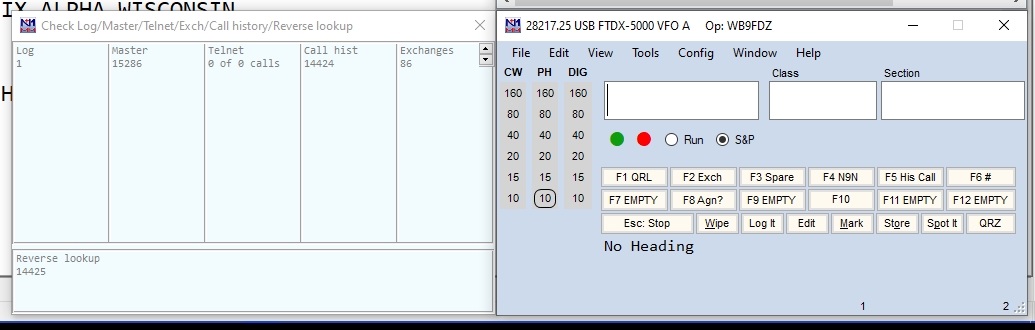
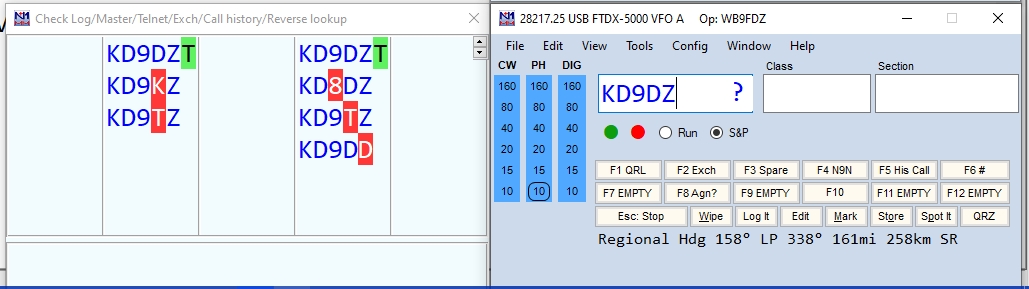
In the main window choose Window> Check
and a new window appears that looks like this.
There are six fields, I won't explain what each does. Not important.
But lets see what happens with
the same situation from above.
CQ
FIELD CQ FIELD DAY, THIS IS NOVEMBER NINE NOVEMBER CQ FIELD DAY. KILO DELTA NINE DELTA
ZULU %^**#@ (You type in KD9DZ
and this appears in that new window!)
First notice in the main window? There is a question mark. N1MM+ is
smart!
It is telling you that KD9DZ is NOT a valid call and must be wrong.
In the New "Check" window it is showing you all the possible matches
that ARE valid real calls!
The possible match that is highlighted in GREEN,
is a true and real call, AND has a history of doing contests.
The ones highlighted in RED
are also true and real calls, BUT they have no history of doing any
contests.
Now in my history of using this, I have never ever had it be wrong!
Honestly!
So I would automatically add the Tango on my own and proceed as like
this.
CQ
FIELD CQ FIELD DAY, THIS IS NOVEMBER NINE NOVEMBER CQ FIELD DAY. KILO DELTA NINE DELTA
ZULU %^**#@
KILO DELTA NINE DELTA ZULU TANGO WE ARE SIX ALPHA WISCONSIN
And the contact continues.
In the time it took to ask for the missing letter using the "Check"
we actually finished making the contact. And are now working someone
else.
More Aides To Come!
++++++++++++++++++++++++++++++++
Now
if this one works all depends on if our network gurus got the
networking all worked out.
So right now I won't go into how to set up the inter-station
networking, for it may be different from the Norm.
But "Regular" Networking is sooo simple.
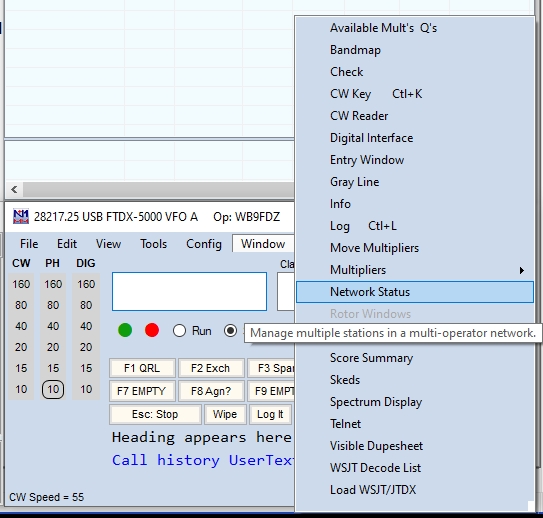
Go to the main window and choose
Window>Network Status.
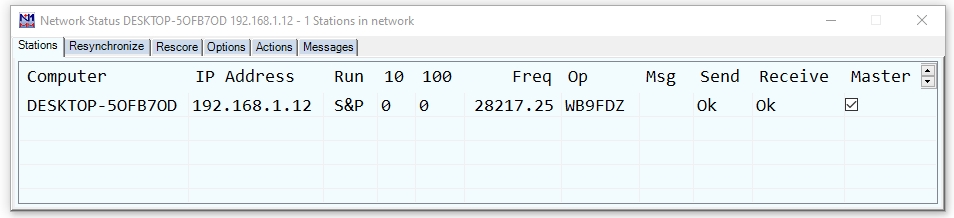
Click on it and this window will appear.
This does a LOT. But the main purpose it to connect all the computers
together.
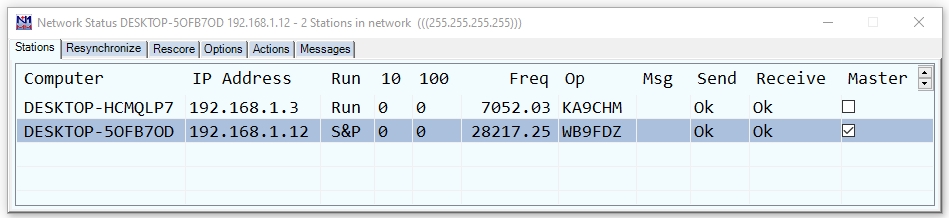
But it also tells you what everyone else is doing! Oh lookey there
another station just joined the network! What each Column is
telling us.
Computer = Well what computer it is,
IP Address = What on the network the IP Address is.
Run = This tells us what the station is doing if they are Running
(CQing) or S&P, (answering other CQ's)
10 = Tells us how many contacts the station has made in the last 10
minutes.
100 = Is the same thing except for the last 100 minutes.
Freq. = What frequency they are on.
Op. = Who the operator is.
Msg = Actually I am not sure what this is for.
Send & Receive = Same not sure what they are for.
Master, = who the master is if there is one.
But actually while it is Nice to know who is doing what on what band.
the MOST important thing this network does if share all the logs from
all the stations. The log is saved on every station. so there is no
risk of loosing the log for the weekend.
ALSO, say you been on 40 for a while and want to try 15 you see is not
being used. so you go there and start making contacts. Thing is 3 hours
ago someone else was already on 15 and made 100 contacts!
without
the network you at your station have no idea who the other station
contacts. but because of the network you have their log, so you know
who is a dupe and who isn't!
Also this very first step will only be done by one station. It will be
called the "Master" on the network.
But you all now at home can still do all of this to get some practice
so you are accustomed to using it
(If You Choose To do So) on Field Day.
This step the "Master" will do at Field Day ( or when Practicing at
home.)
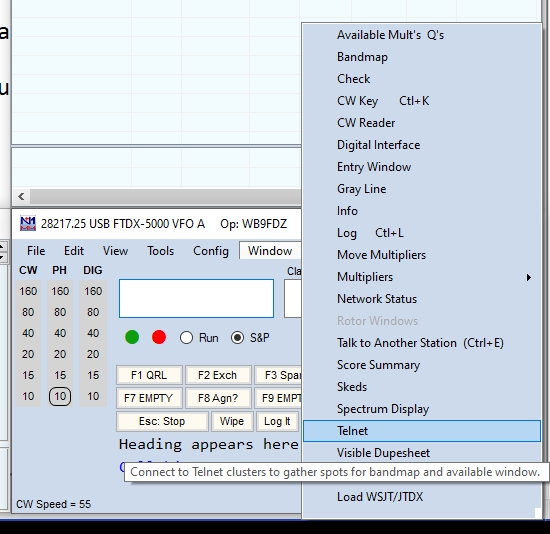
Go to Windows, and Choose telnet
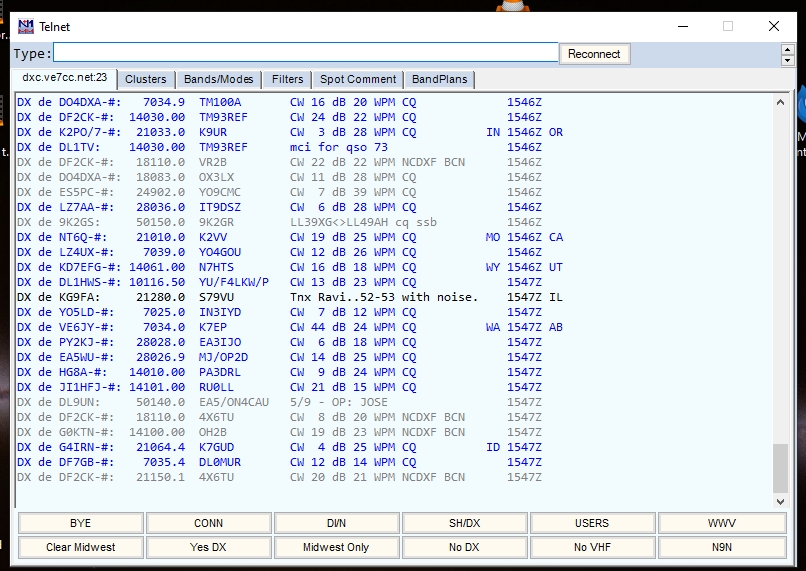
If you have done this before it will automatically connect you to the
DX-Cluster like this.
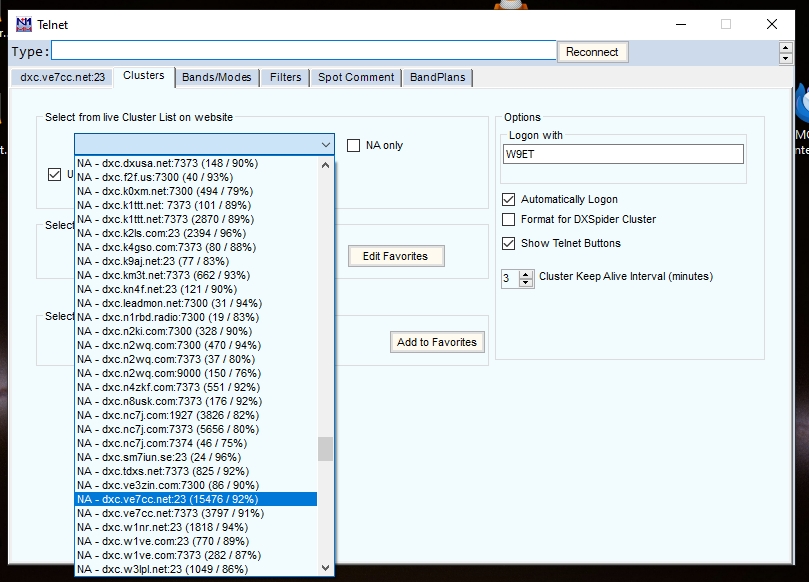
If this is your first time you will have to choose a cluster to use.
via the Clusters Tab in that window,
Click on that and you will see,
Choose LonOn with N9N
Check Auto logon, show telnet buttons, 3 for keep cluster alive.
Then click the Connect to dzc.ve7cc...... button. and you
should start to see spots streaming like this,
Now this window is strange. you can't minimize it, if you do the data
flow stops.
But it doesn't care if you hide it under other windows. I know strange!
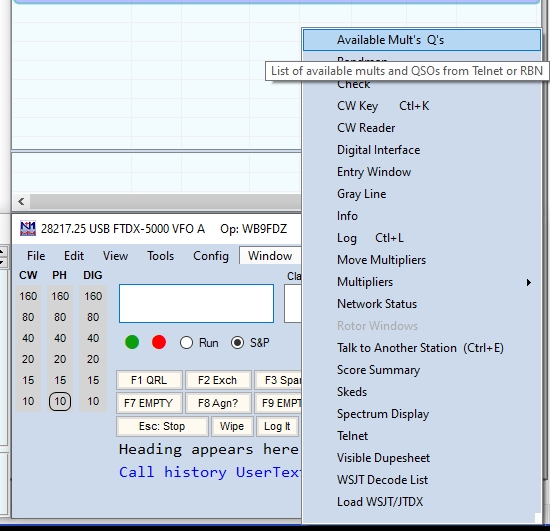
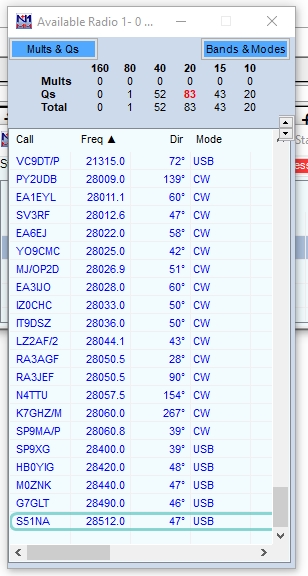
Now go to the main window and choose Available mults and Q's
And this window will appear.
This window shows you all the stations that are available and waiting
for a call.
This window I dont use the area much where the calls are. But i do use
the area at the top.
That area shows you what is happening on ALL the bands!
How many new mults there are, all says zero because there are no mults
in Field Day
Q's are good stations to call. Total is well Total..
My radio is currently on 10 meters,
But as seen in that area it is suggesting I go to 20, there are more
stations there to work.
Handy,
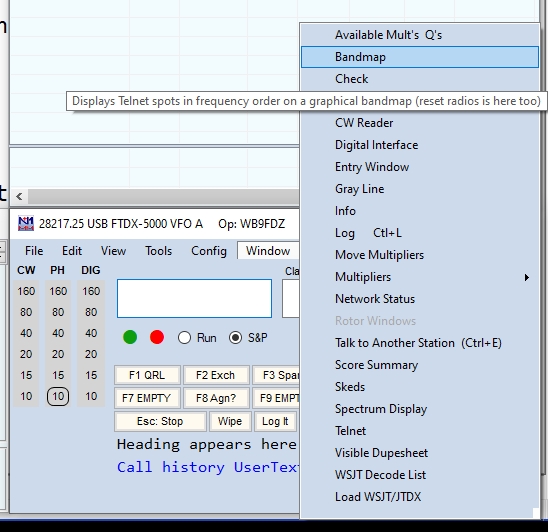
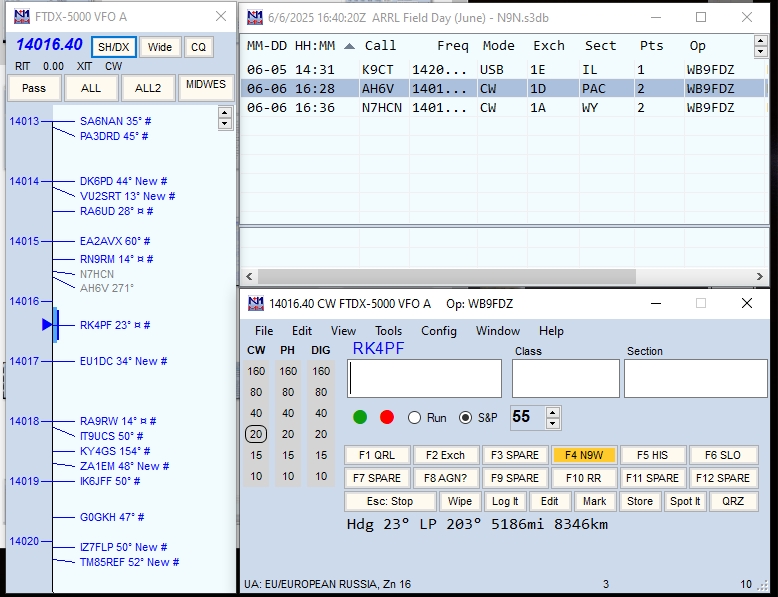
Now back to the main window choose Window>Bandmap
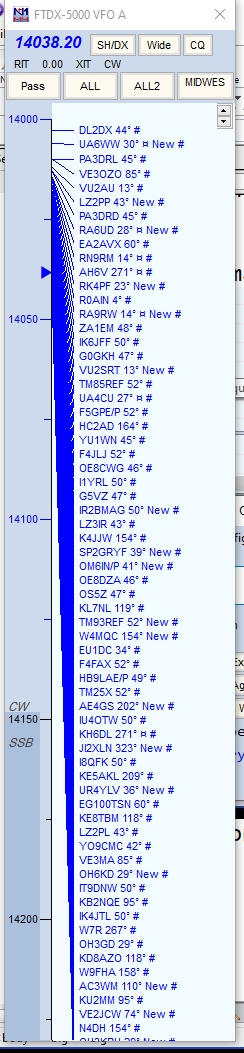
And this funky long window will appear!
OMG! look at all those stations you can try to contact.
There are soooo many ways to use this window,
Of course this is all S&P mode.
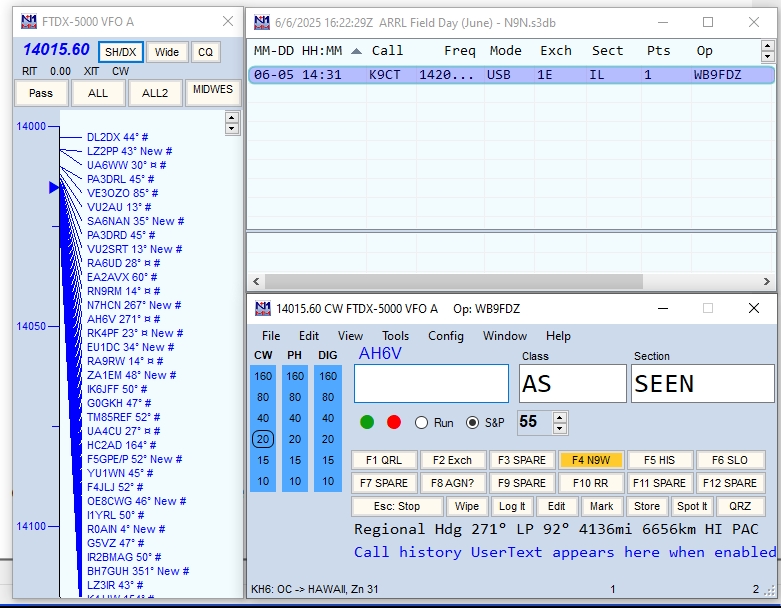
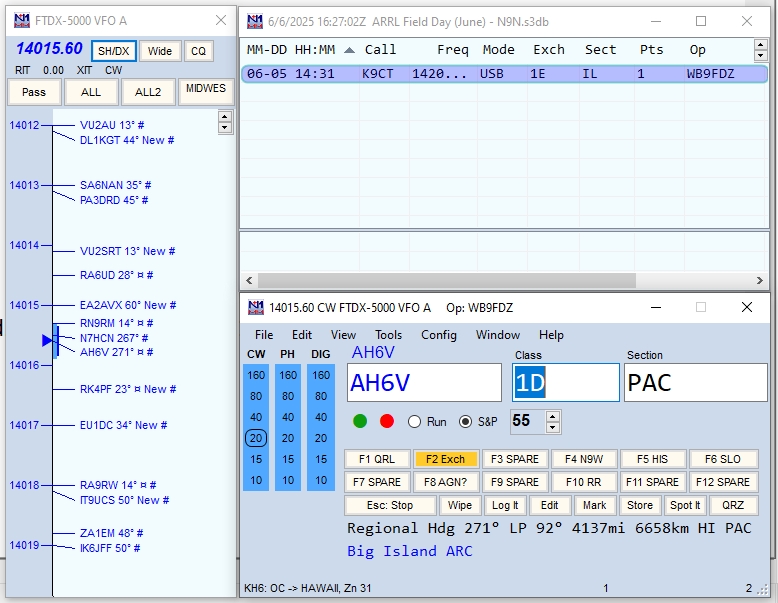
One way is you can click on a station you want to cal, by clicking on
it and it places them "On Deck' as seen here.
Where the station is like waiting,,,, ignore the as seen he he eh
didn't look where I was typing
those window are empty.
OK he is on deck and when it's time you call him,
if he doesn't answer try again, bla bla bla.
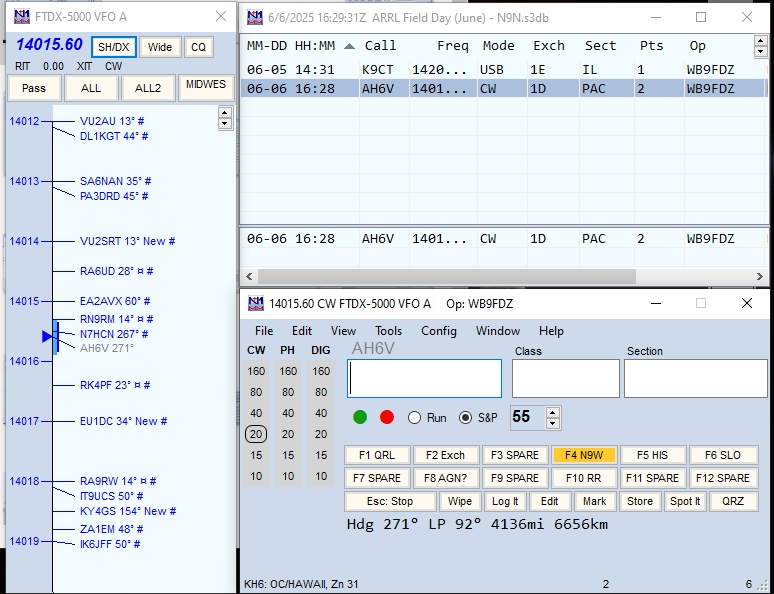
but if he answers you hit your spacebar and.. Boom!
populated. send him your exchange and if he QSL's it then hit enter,
and Boom!
In Da log!
notice something else? AH6V is not Blue it's Gray!
Gray = Worked Already
Blue = good to work
RED = Good to work and in a Mult also
GREEN+ is good to work, is a mult, in 2 ways. Like the first time in
the WIQP you work say Sauk, it is work a mult as a county and as
Wisconsin too double mult Green.
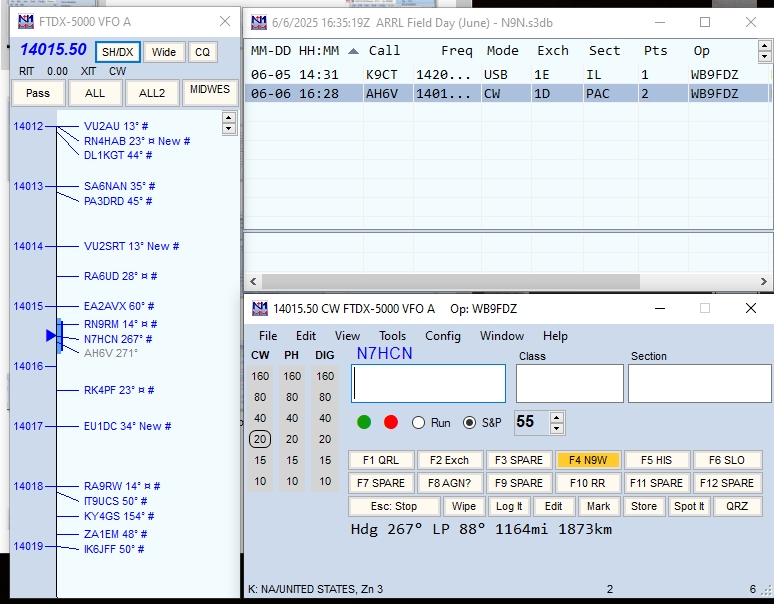
Now I "COULD" click on that N7HCN to work him next. But I like this
better,
I Do Ctrl+ up or down arrow, and the program automatically jumps to the
next station
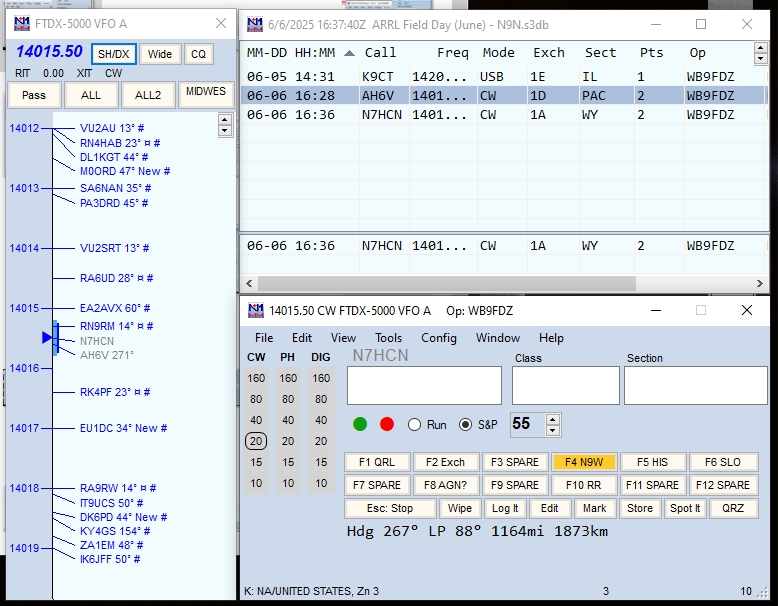
I work him again as usual. and boom in da log.
notice no N7HCN & AH6V are both Gray. Even if you tried you
can't click on them
Now say I did Ctrl+ down arrow, what happens?
it skips over the stations I already worked, and stop on the next
available one.
The RK4PF
Also if you like to twit the big VFO know the bandmap follows you and
tells you who you are hearing even before they say who they are.
Like I said, More features coming.
but with this band map and the rest of the features, man can ya fly!
Joe WB9SBD
==============================
This is the last, it is also the most complicated. BUT it is also the
to me the most important
aide there is available. If not the top it is super close!
It is the making and use of WAV files.
If you plan on using them, there is a few set up things like having
your computer talk to the radio with the wav files.
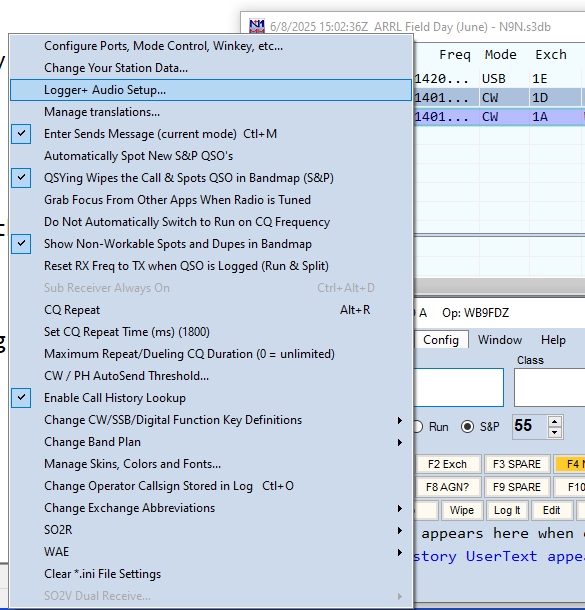
Set-Up is go to the main logger window,
Choose, Config> Logger+ Audio Set Up
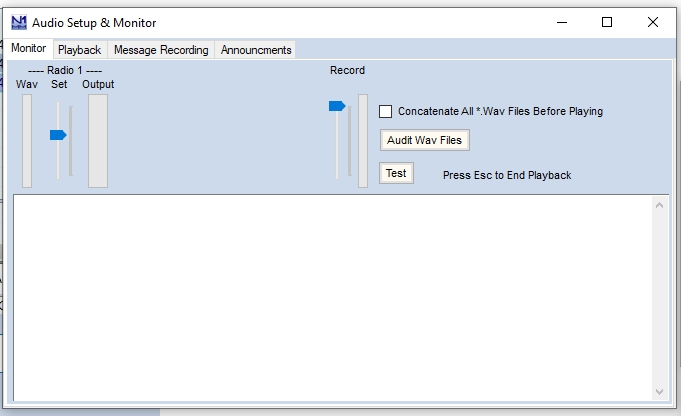
And a window like this will appear.
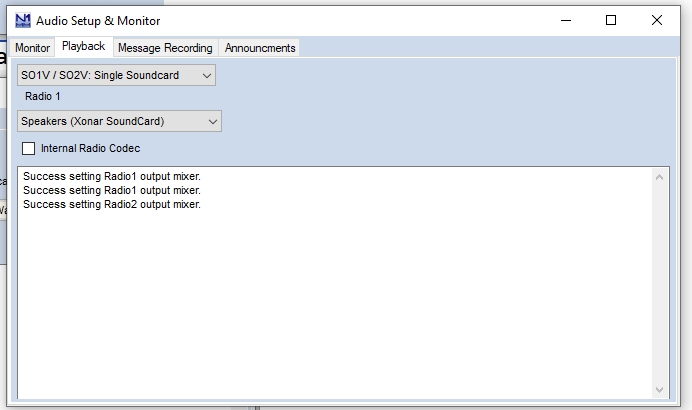
Choose the Playback tab
Keep the SO1V/SO2V setting
And adjust to the soundcard you will be using.
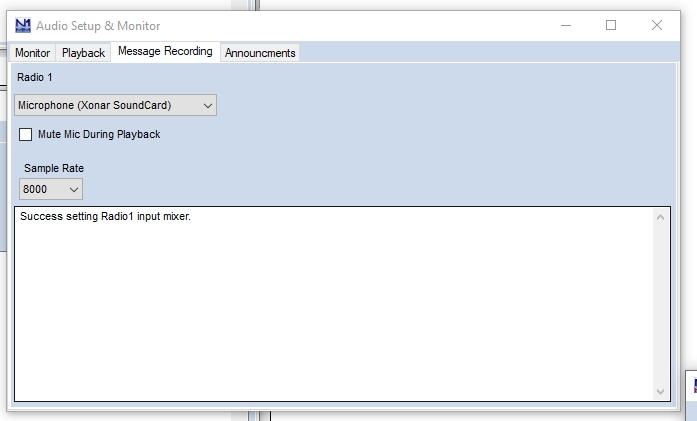
Then Choose the message recording tab.
And adjust as needed.
Now if you go back to the first window,
And click on the Test you will see at the left some audio being played.
And if things are all set right if you put your radio in Transmit mode
and hit that test again,
the radio should hear it and transmit it.
Ok now go back to the main logger window and make sure it is the
"Focus" (click anywhere on it.)
Myself I would at LEAST make up the CQ message. That you will be saying
more than anything else!
If you have everything setup right, making the recording can't be much
simpler!
First be sure you are logged in as the operator. Ctrl+O and
your call.
You can have as many sets of wav files as you want. They are all saved
as the Operator.
Lets make the CQ Message. For Field Day I like
"CQ FIELD DAY CQ FIELD DAY THIS IS NOVEMBER NINE NOVEMBER NOVEMBER NINE
NOVEMBER FILELD DAY"
To make the recording simple do
Ctrl+Shift+ F1 That starts the recorder, say the
CQ message then hit the Esc key that stops the recorder.
Now if you hit F1 your rig should transmit your message.
Now I don't know if anyone wants to make up a complete wav file set up
that was like the slideshow video. Let me know.
Of it you wanna use the complete set I have already for N9N,
granted it will be in my voice.
OR the GOTA Station I also have a complete set ready for W9ET if you
want it.
I'm thinking for GOTA this might be really good for getting the general
visitor on the air.
Most remember what it was like to be mic shy! this way that mic shy is
taken away.
Using these WAV files and all the other above aides, can really make a
HUGE difference.
Check this out,
Say I am in the Wisconsin QSO Party, doing CW, And I'm doing
S&P "Search & Pounce"
This is where you go around answering other people CQ's.
<ENTER>
= hitting the ENTER key... and the up arrow is hitting the up arrow key.
My Hands are on the keyboard ONLY, I never even touch the radio, not
once, and these are the only keystrokes I make.
↑<ENTER><ENTER>
↑<ENTER><ENTER>
↑<ENTER><ENTER>
↑<ENTER><ENTER>
↑<ENTER><ENTER>
↑<ENTER><ENTER>
↑<ENTER><ENTER>
↑<ENTER><ENTER>
↑<ENTER><ENTER>
↑<ENTER><ENTER>
What is this?
That is My ONLY KEYBORD presses working ten stations using N1MM+
in search and pounce mode (answering other peoples CQ's)
Just three keystrokes per QSO, nothing else typed! NOTHING,
99% of contacts would be made like this. The VFO was never even touched
also!
In RUN MODE (I'm CQing) There is a bit more typing,
But again 99% of the QSO's are made just typing this below to make 10
contacts!
How about on Phone. Like I said you can do the exact same thing.
Yes there is some more pre-contest setup of making the audio files,
But, Check this out.
This was also in the Wisconsin QSO party. I CQed once, F1 canned
message, and from then on,
all I did was type their call and the exchange. I could have
made it even easier.
N1MM+ has a feature, remember the CH file. This file has say for the
Wisconsin QSO party.
This group harvests all the logs that were sent in. And saves their
Information.
like if you were in the WIQP last year, and I put your call in the call
window it automatically
populates the exchange filed with what you said you were last year.
I forgot to turn that feature on so I was typing the calls and
exchanges by hand.
And I did not patch in the radio audio. sorry,
And I should have re-recorded the "Sauk" it wasn't very clear, but
because there is nothing even close
to the same sound I said screw it. and left it be.
https://youtu.be/6LfdC4LlKJo?si=4kFQmS7XqYIu4ANO
That seemed relaxed and calm didn't it? Not rushed or hectic or stressful was it?
Yet that was a rate of 7 yes SEVEN Contacts a minute! Thats 420 a hour if you can find enough people to call you!
Anyway contact me if you are interested in doing any of these wav file
stuff. or want the N9N or the W9ET complete set ready to use files.